Part 0. Account creation
Create a free account in the Oracle Cloud website. A credit card may be needed for identity verification purposes.
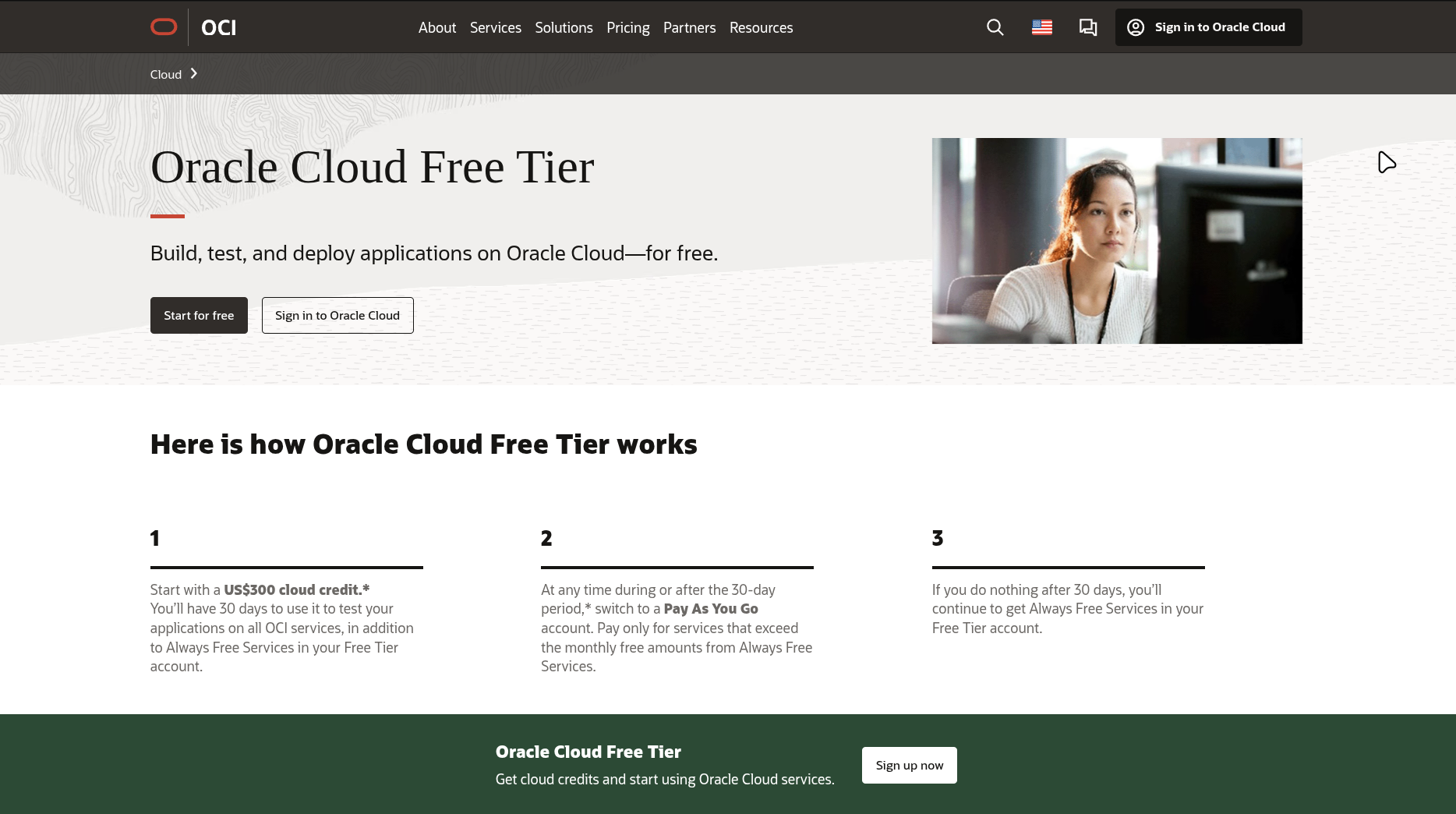
Even though a credit card number is required, following this tutorial correctly should not incur you any charges. The Always-Free instances at Oracle are free for our usage purposes up to an indefinite amount of time, in contrast to AWS’s free service for a single year.
This will allow us to spin up an ARM (aarch64) instance with 24 GBs of RAM, 4 OCPUs, and 200 GBs of disk storage, which is nothing to scuff at and can serve us way beyond our intended purpose on this guide.
Update (January 2026) Many Oracle users are reporting that allocation pools for the Always-Free ARM instance are depleted and your luck may very creating VMs. One alternative is to convert your account to PAYG (Pay-as-you-go), giving you access to a bigger pool of machines.
Don’t worry. As long as you do not create any extra instances, you will still stay on the Always-Free tier and won’t be charged. Still, I would recommend setting cost alerts to avoid surprises.
Part 1. Preparing deployment
We will configure our operating system declaratively, so, keeping the same philosophy, we will spin up our instances using Terraform. Install it following these instructions and join me back when you have the terraform executable in our PATH. Also make sure you have openssl in your environment.
Now, we need a way for Terraform to authenticate into our Oracle account. For this, we need to generate a key pair, keeping the private pair saved safely in our computer, and pasting the public key into Oracle’s web portal. There are official instructions here, but the gist of it is:
mkdir ~/.oci
openssl genrsa -out ~/.oci/oci-terraform.pem 2048
chmod 600 ~/.oci/oci-terraform.pem
At this point you should probably create a Git repository where you will store both the Terraform script and your NixOS configuration.
In your repo, create a file main.tf, making adjustments as you please, with the following:
// main.tf
module "create-instance" {
  source = "github.com/camcam1773/oci-free-tier-terraform-module"

  num_instances                        = 1
  instance_ocpus                       = 4
  instance_shape_config_memory_in_gbs   = 24
  assign_public_ip                     = true
  public_ip                            = "REVERSED"
  auto_iptables                        = true
  ssh_private_key                      = "~/.ssh/id_rsa" // Change to your SSH private key path
}

locals {
  nixos_vars_file = "nixos-vars.json"
  nixos_vars = {
    ip         = module.create-instance.instance_public_ips[0]
    hostName   = "nixos-server" // Anything you want
    public_key = "~/.ssh/id_rsa.pub" // Change to your SSH public key
  }
}

// This writes the instance IP to a JSON file for use by the NixOS configuration
resource "local_file" "nixos_vars" {
  content         = jsonencode(local.nixos_vars)
  filename        = local.nixos_vars_file
  file_permission = "600"

  provisioner "local-exec" {
    interpreter = ["bash", "-c"]
    command     = "git add -f '${local.nixos_vars_file}'"
  }
}

module "deploy" {
  source = "github.com/nix-community/nixos-anywhere//terraform/all-in-one"

  target      = local.nixos_vars.ip
  instance_id = local.nixos_vars.ip
}
And a file to hold an initial configuration for the deployment, let’s start with the system configuration itself:
# configuration.nix
{ ... }:

let
  nixosVars = builtins.fromJSON (builtins.readFile ./nixos-vars.json);
in
{
  imports = [
    ./disko.nix
  ];

  networking.hostName = nixosVars.hostName;

  networking.interfaces.eth0.ipv4.addresses = [
    {
      address = nixosVars.ip; # Use the IP from nixos-vars.json
      prefixLength = 24;
    }
  ];

  users.users.root.openssh.authorizedKeys.keys = [
    "${nixosVars.public_key}"
  ];
}
And the Disko configuration to format the disks:
# disko.nix
{
  disko.devices.disk.main = {
    type = "disk";
    device = "/dev/sda";
    content = {
      type = "gpt";
      partitions = {
        ESP = {
          priority = 1;
          name = "ESP";
          start = "1M";
          end = "1G";
          type = "EF00";
          content = {
            type = "filesystem";
            format = "vfat";
            mountpoint = "/boot";
            mountOptions = [ "umask=0077" ];
          };
        };
        root = {
          size = "100%";
          content = {
            type = "btrfs";
            extraArgs = [ "-f" ];
            mountpoint = "/";
            mountOptions = [
              "compress=zstd"
              "noatime"
            ];
          };
        };
      };
    };
  };
}
Now, we can finally prepare to deploy our new configuration.
Part 2. Deploying to cloud
To finally spin up your instances in the cloud, use the commands:
# Fetch dependecies from our definition file
terraform init

# Send it to the cloud
terraform deploy
This can take a while, but after you’re done, you should be able to SSH into your new Nix instance in the cloud, with 24GB of RAM, 4 cores, and 200GB, free of charge!
Sources